Survue
A cycling safety app that pairs with a rear-facing smart device to help riders understand approaching traffic and capture what happens behind them.
- Role
- Founding Product Designer
- Timeline
- September-December 2024
- Platform
- Mobile · iOS
- Tools
- Figma, C#, .NET
01 / 071 story
Overview
Founding product designer
Make approaching traffic easier to interpret.
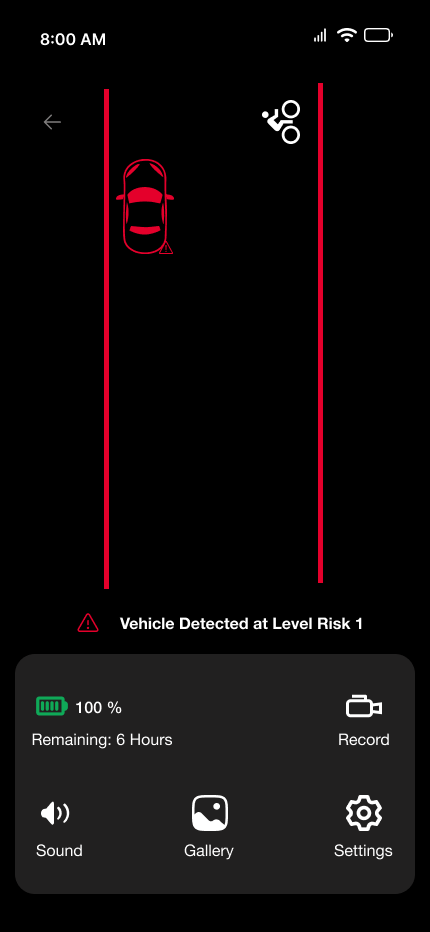
Survue connects a rear-facing device with a cycling app for vehicle awareness and recordings. As founding product designer, I shaped the app structure, interaction flows, components, and prototype using the founder's palette and Helvetica Neue typography. A rider cannot study a screen while moving. Traffic information needed to be understandable at a glance, without asking the rider to decode a new interface each time. My hypothesis: if the road view stays the same and only the vehicle's position and warning colour change, riders would read urgency faster than from a distance or a risk number.
- Before the ride → discover and pair the device
- During the ride → monitor vehicle position and warnings
- After the ride → review recordings in Gallery
- Decision
- Keep the road view familiar while the warning state changes.
02 / 071 story
Structure
Decision / separate setup, ride, and review
Give each part of the ride its own place.
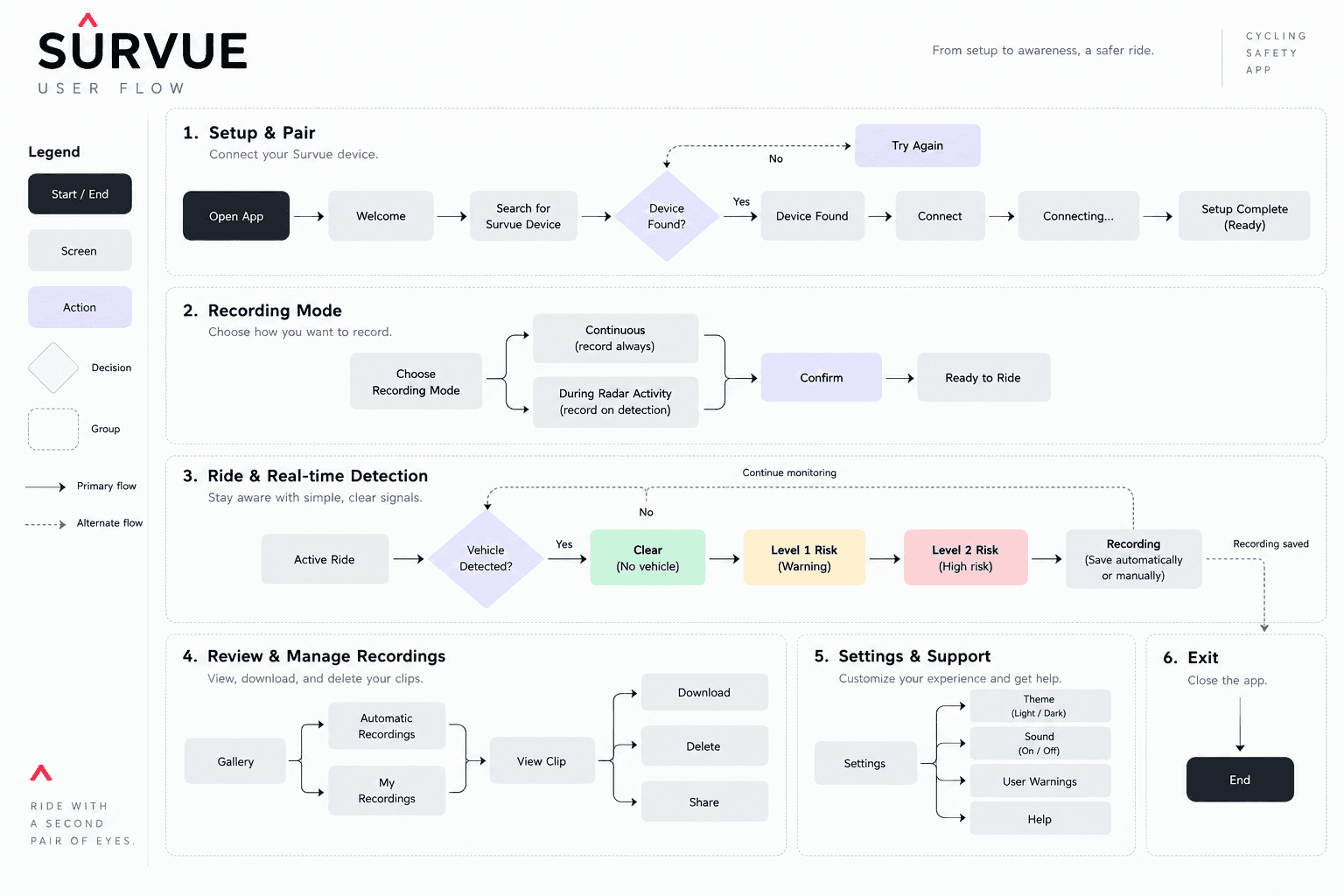
I mapped the experience from device setup through live detection to recordings. Pairing belongs before the ride; vehicle awareness is the main riding view; Gallery is a separate destination for reviewing captures. This structure keeps setup and review tasks out of the main detection screen.
- Decision
- Organize around the rider's task rather than putting every device capability on one screen.
- Constraint
- A visible connection state and a warning display serve different purposes. The interface needs to distinguish device readiness from traffic conditions.
03 / 073 stories
Ride flow
Original wireframes
Establish the destinations before the visual system.
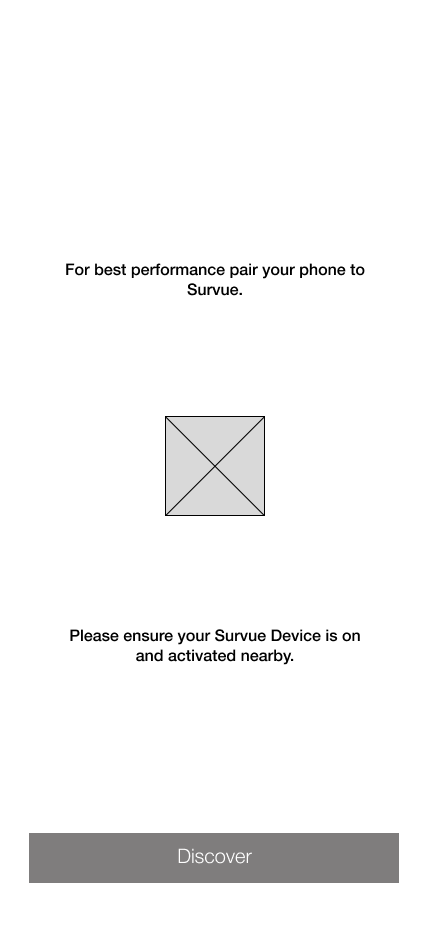
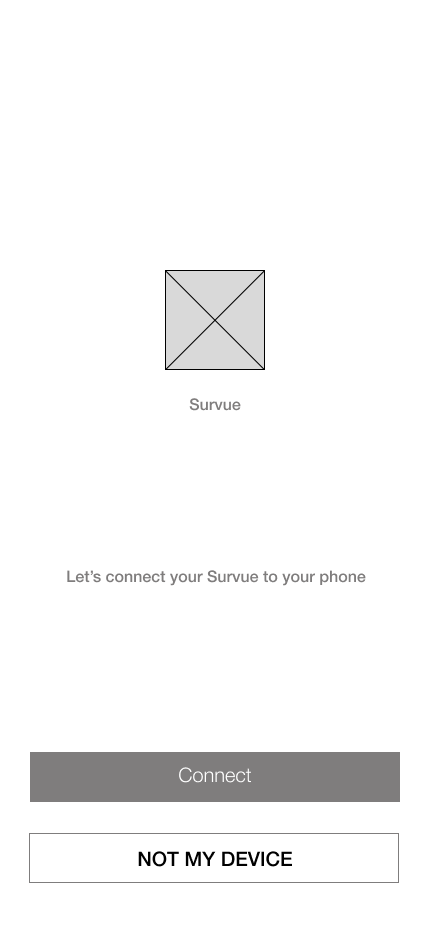
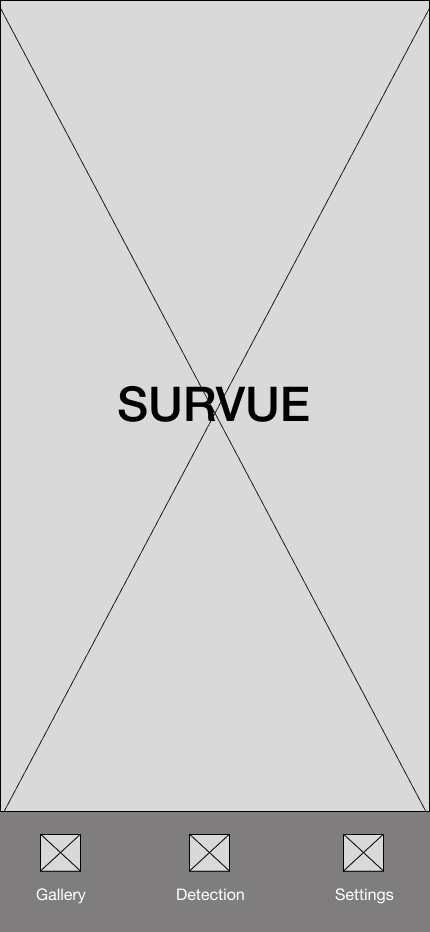
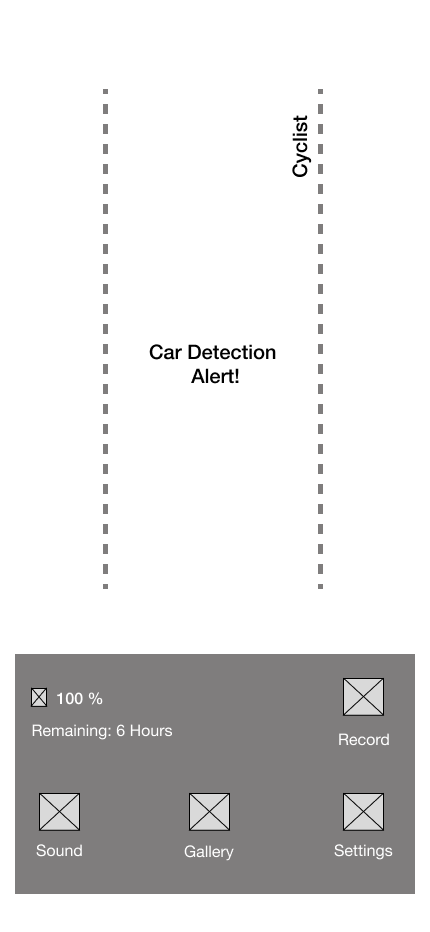
The original wireframes cover Welcome, Pair, Home, Detection, and Settings. They show the app's entry points and task structure before the final visual treatment. Detection and Gallery are separate destinations in the Home navigation.
Decision / explicit device setup
Separate discovery from the choice to connect.
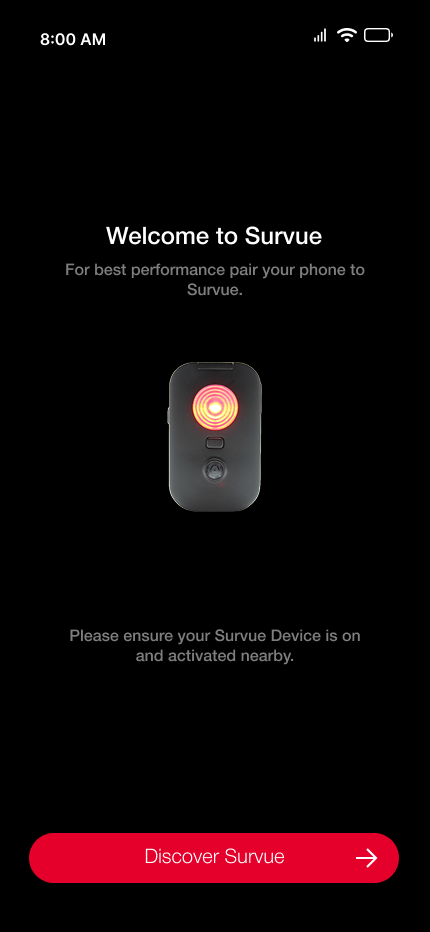
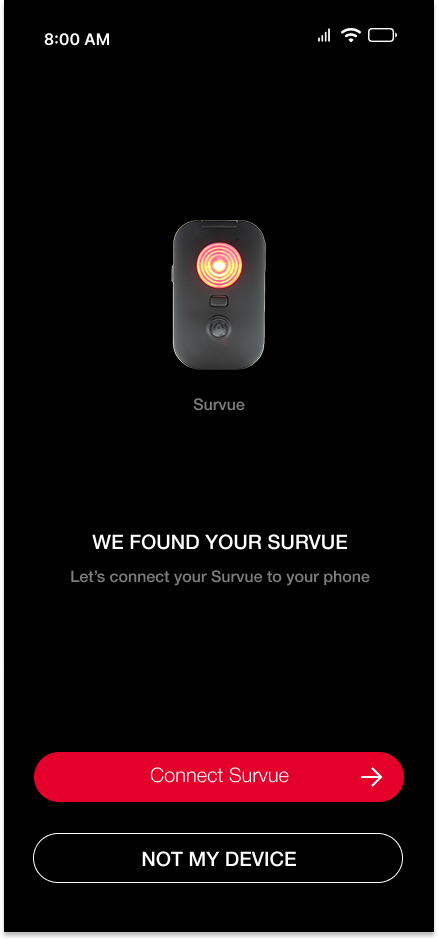
Welcome introduces device discovery. The Pair screen then offers Connect and Not My Device actions. Separating those steps makes the device choice explicit instead of treating discovery as confirmation.
- Decision
- Give the rider a way to reject the discovered device before connecting.
Retrospective reference
Two explanatory reconstructions, shown separately.
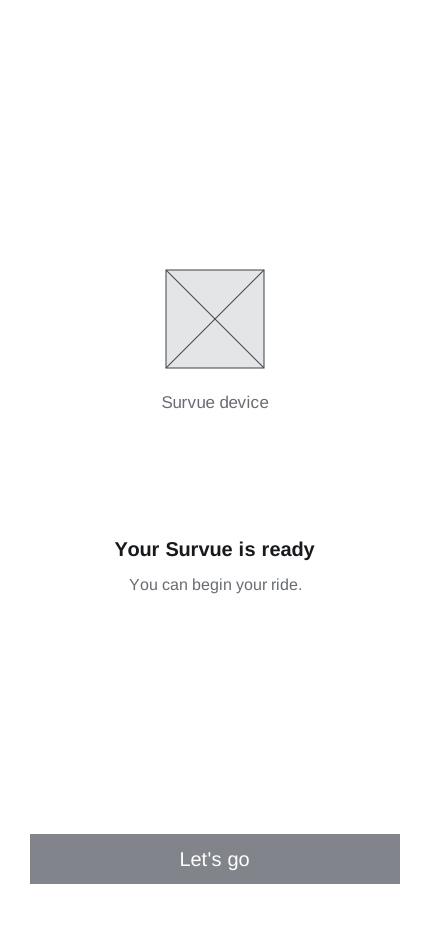
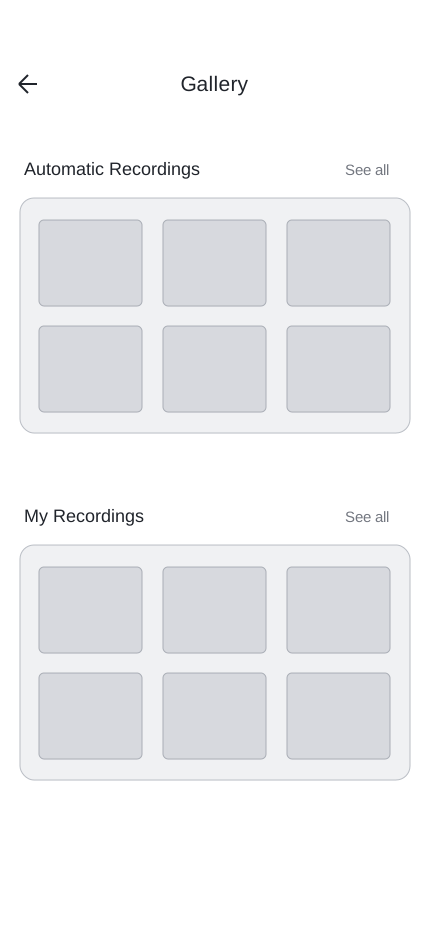
These Ready and Gallery wireframes were reconstructed from final screens to explain the flow. They are retrospective illustrations, not evidence of the original design process. The original wireframes appear separately in this section.
04 / 073 stories
Detection
Exploration / information versus interpretation
Distance and risk each left a question unanswered.
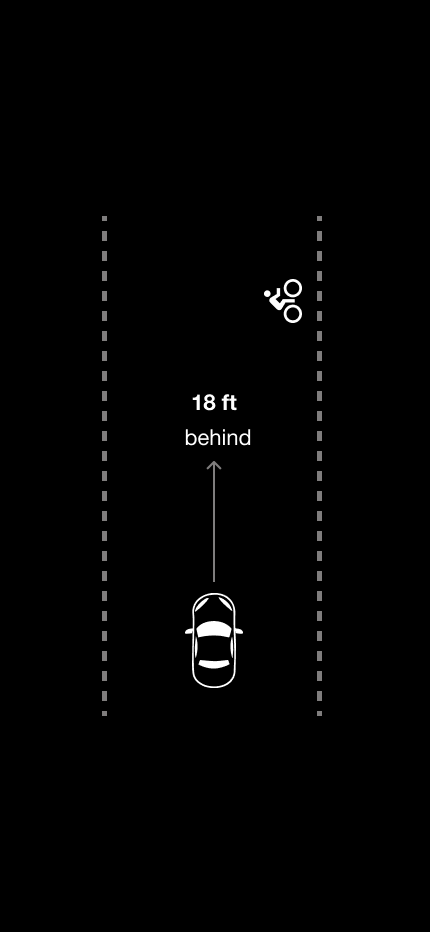
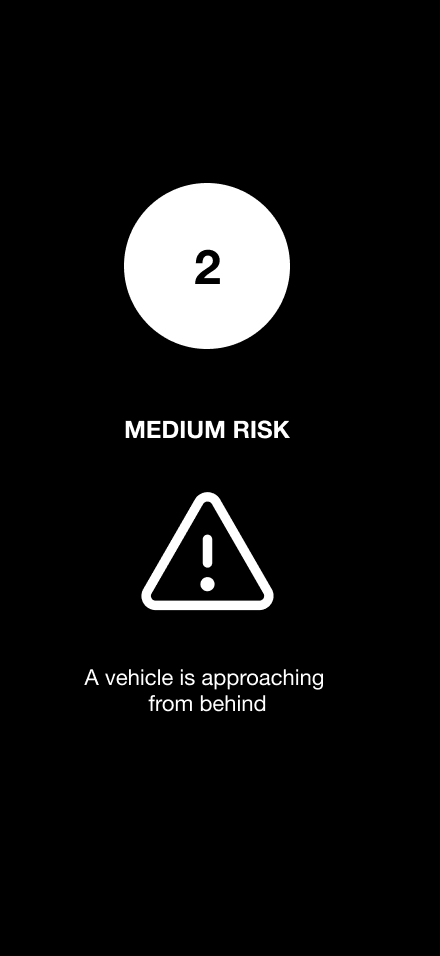
I explored distance behind the cyclist and a large numeric risk level. Distance shows proximity but leaves the rider to interpret urgency. A risk number emphasizes urgency but loses vehicle location. These were design tradeoffs, not conclusions from a measured riding test.
- Decision
- Combine a spatial reference with warning state instead of asking one number to explain both.
Decision / a stable spatial reference
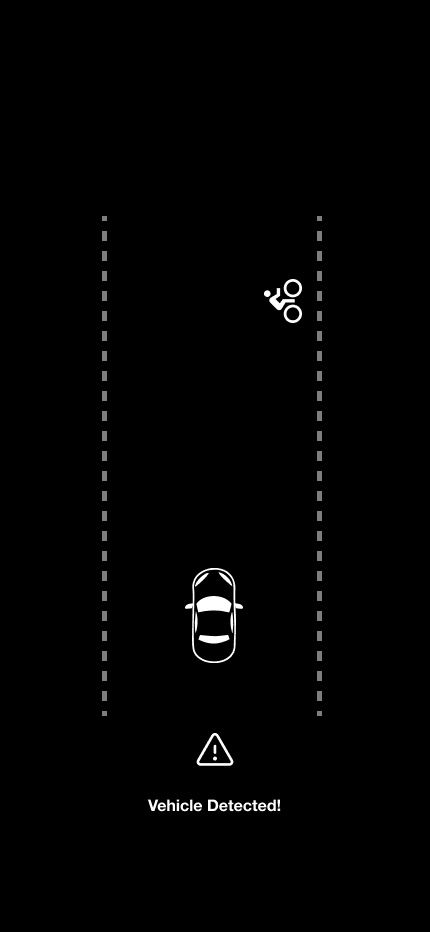
Bring the vehicle back into the road view.
The next concept places the vehicle in a simplified road behind the cyclist. That gives the warning a spatial reference instead of presenting an isolated value. It became the basis for the final detection direction.
- Decision
- Use the same road model across warning states.
Final direction / changing urgency
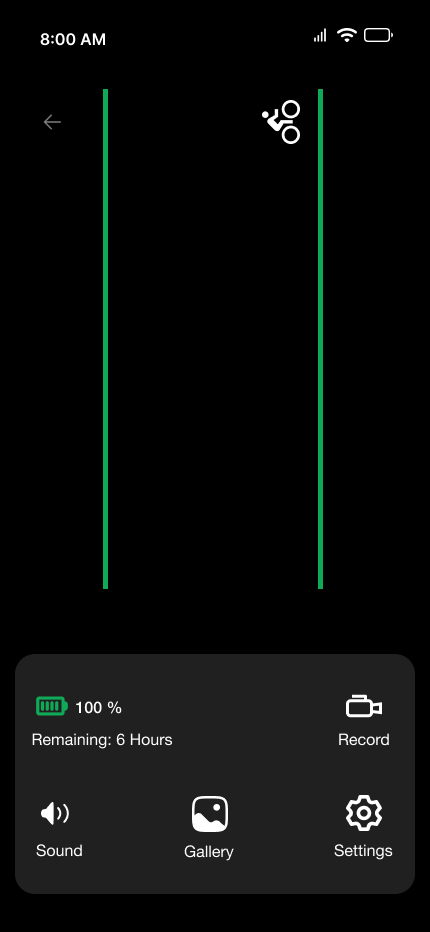
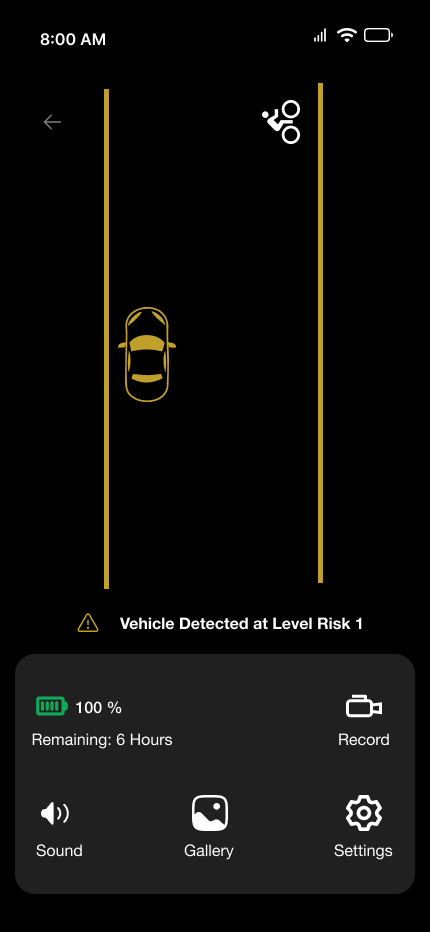
Change the warning. Keep the structure.
The final screens retain the road model across green, yellow, and red states. Vehicle position and warning color change within that familiar structure. This is the interface direction; it does not establish detection accuracy or how reliably cyclists understand it while riding.
- Decision
- Preserve the spatial layout as urgency changes, rather than replacing the riding view with a different warning screen.
05 / 075 stories
Interface system
Interface system / founder-defined palette
Apply the brand palette to interface roles.
The founder defined the colors and typography. I applied those foundations to the app's surfaces, controls, and vehicle-awareness states. Black and off-white anchor the themes; green represents safe passage, mustard yellow marks level-one risk, and red marks the red warning state.
- Decision
- Use the founder-directed red for onboarding actions while keeping its warning meaning explicit in the road view.
Palette
Typography / founder-defined family
Build hierarchy within Helvetica Neue.
Helvetica Neue was the founder's chosen typeface. I used it across navigation, controls, and status messaging. The examples show how the same family supports a screen title, an action, and a warning without introducing another typeface.
Helvetica Neue
- Screen title
- Automatic Recordings
- Primary action
- Discover Survue
- Status message
- A vehicle is approaching from behind
Components / actions and settings
Give actions and preferences distinct forms.
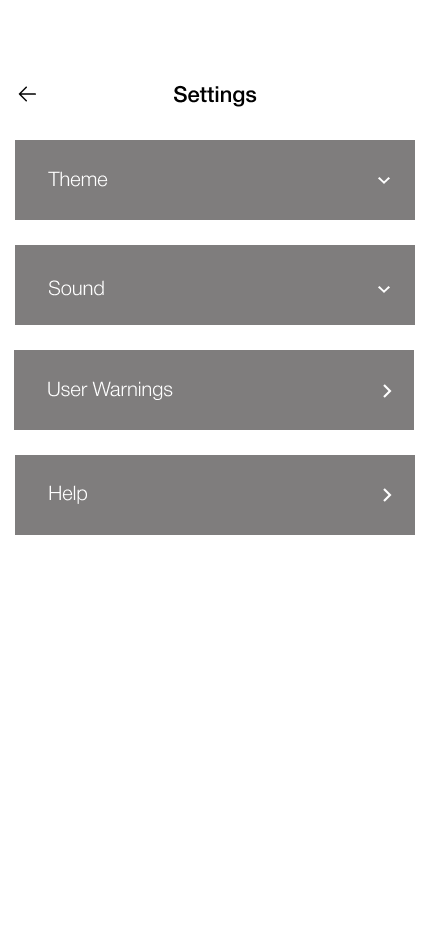
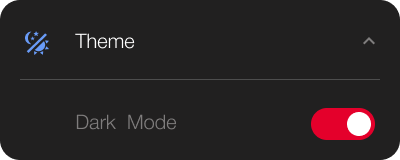
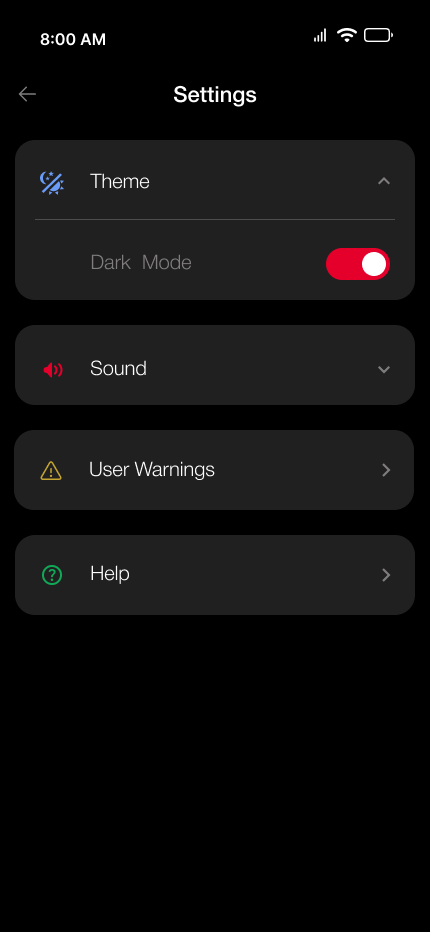
The filled red onboarding button and outlined Not My Device action establish primary and secondary choices. Settings rows use the same rounded surface in collapsed and expanded states. The expanded Theme row reveals its control while retaining the parent label.
- Decision
- Keep the settings row recognizable when it expands, and distinguish the main onboarding action from its alternative.
Components




Iconography / navigation and status
Pair recognizable symbols with clear labels.
I selected icons through the Iconify Figma plugin for navigation and common actions, alongside ride and device-status symbols. Icons are paired with labels in navigation and settings to make their meaning clear.
Icons


Spacing / mobile guideline
Use a small scale to separate related tasks.
A 4-point spacing scale organizes the mobile interface. Smaller steps keep labels and controls related; larger steps separate groups and screen sections.
Scale · drawn at 4×
06 / 073 stories
Experience
Device setup / final interface
Make device readiness an explicit state.
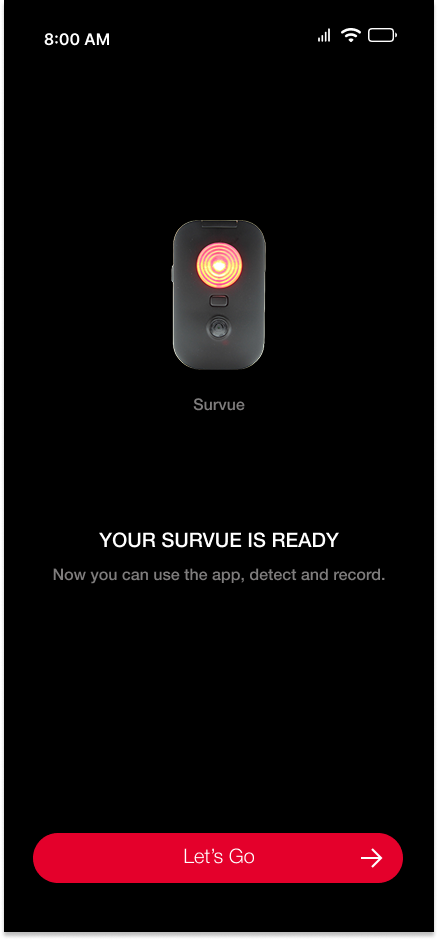
The final setup screens distinguish discovery, device found, and ready. Each screen represents a different point in the connection flow, rather than asking the rider to infer readiness from a single confirmation message.
Decision / review after the ride
Keep saved recordings separate from live awareness.
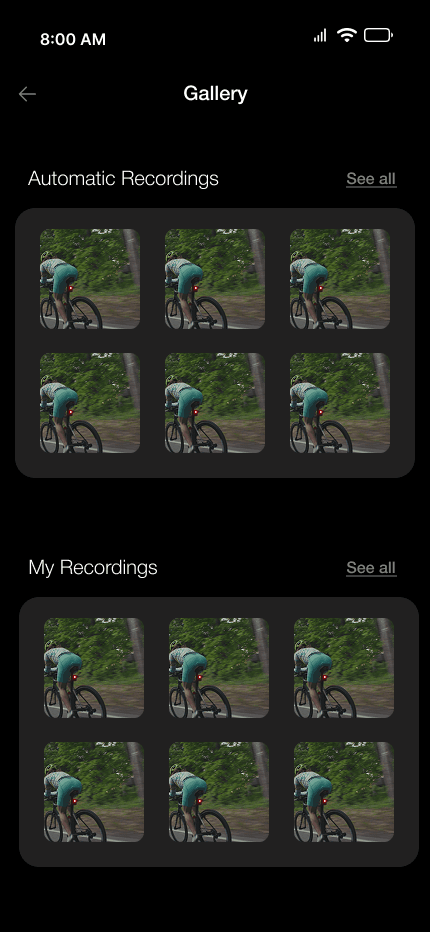
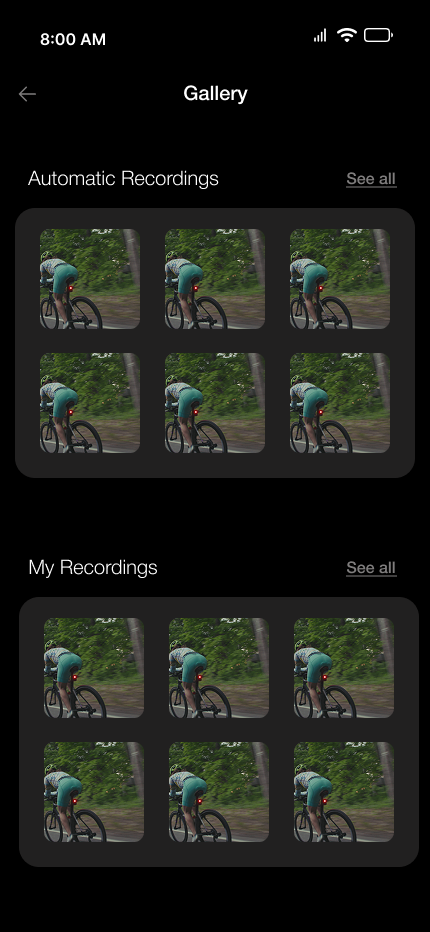
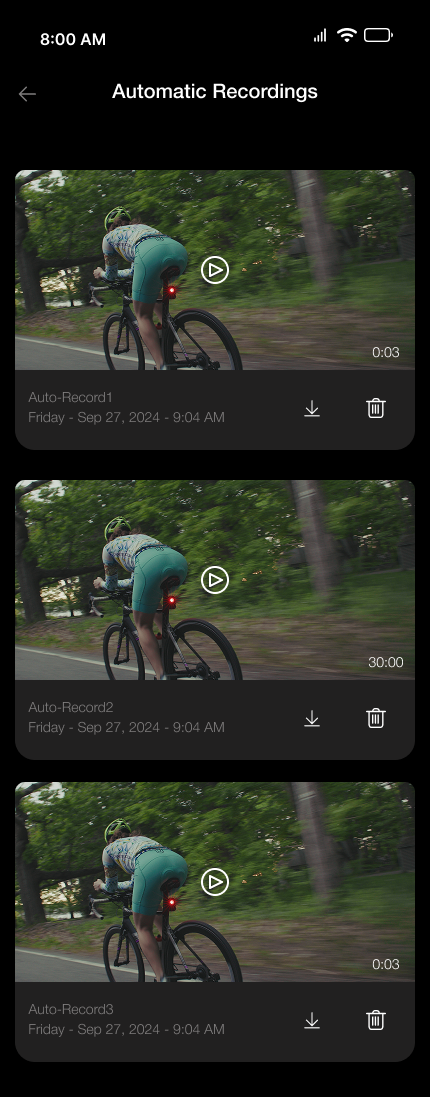
Gallery separates automatic captures from personal recordings. The automatic-recordings view provides a list of saved clips for later review. Keeping these tasks in Gallery preserves Detection as the destination for vehicle awareness.
- Decision
- Separate reviewing a recording from monitoring the road view.
Preferences / final interface
Keep preferences outside the detection view.
Settings groups Theme, Sound, User Warnings, and Help. The expanded Theme screen shows how preferences are organized without adding those controls to the live road display.
07 / 071 story
Delivery
Delivery / evidence and next steps
A connected interface, with validation still to establish.
The final screen set and interaction prototype connect setup, detection, recordings, and settings. I designed the interface and prototype, and built the app's settings section in C#: theme settings, the sound toggle, user warnings, and Help. This case study does not establish a production release, hardware detection performance, or a measured safety outcome.
- Constraint
- The C# implementation described here covers settings; the other screens document design and prototype work. The next validation priorities are warning comprehension while riding, non-color cues, and connection-loss behavior. To test the hypothesis, I would measure how quickly and correctly riders name the warning level from a brief glance.
- Outcome
- An app structure, original wireframes, detection explorations, final UI, and an interaction prototype.